![help_logo.png]](https://help.spirinc.com/hs-fs/hubfs/help_logo.png?height=34&name=help_logo.png)
This feature is not available on the free plan.
If you would like to use it, please consider upgrading to a paid plan.
Overview
You can add email addresses to send a calendar invitation to other than the people added to the event. This feature is useful when you want to schedule meetings using a Template, but do not need to consider a particular calendar's availability and still want confirmed events to be visible and managed on that calendar.
When you register an email address, confirmed events are automatically added to the calendar associated with that address.
| Action | Result |
|---|---|
| Add events to a calendar | ✅ Events are added automatically |
| Consider calendar availability | ❌Availability is not checked. Events can be created regardless of the calendar's availability. |
| Calendar invitation email (sent from Google/Outlook) | ❌ Not sent |
| Confirmation notification email (sent from Spir) | ❌ Not sent* |
| Displayed under "Participants" in the confirmation email | ✅ The email address appears in the Participants list** |
* If notifications are required, register the address separately under Notification Email Addresses.
** If the setting Create a shared event in calendar apps is enabled, the email address will not be displayed.
How to Configure
- Open the edit screen for the Template.
- In Send a calendar invitation enter the target email address.
- Click Add.
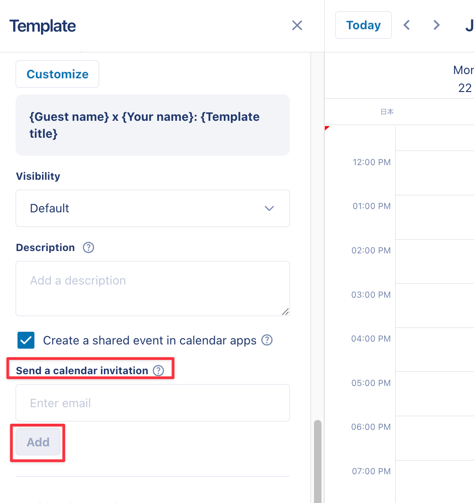
- Click Save to complete the setup.
Once a scheduling participant confirms a time, the event will be added as a tentative event to the calendar associated with the registered email address.
Calendar Behavior After Registration
When an event is confirmed, a tentative event is automatically added to the calendar associated with the registered email address.
The event will be added even if another event already exists during the same time slot.
Behavior Depending on Whether the Scheduling Participant Is Invited
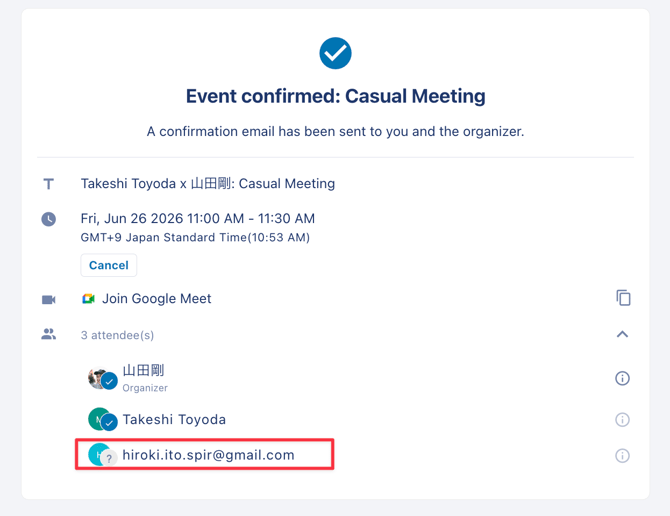
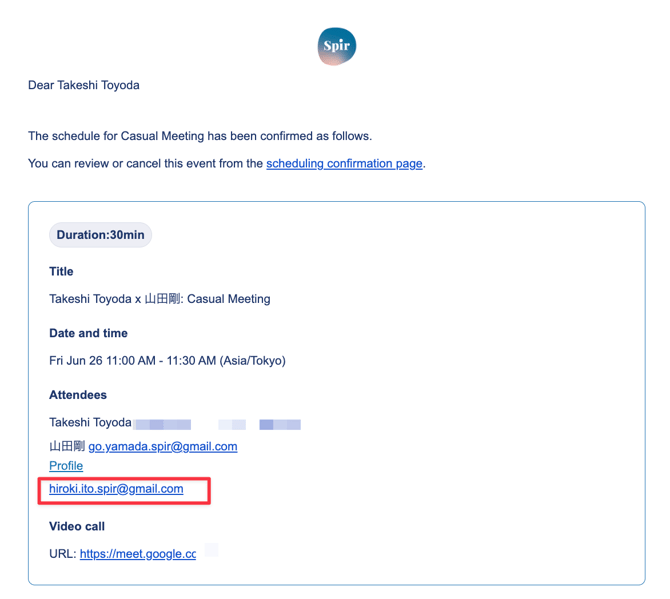
When "Create a shared event in calendar apps" Is Enabled
The configured email address is displayed on:
- The completion page shown after scheduling is confirmed
- The scheduling confirmation email
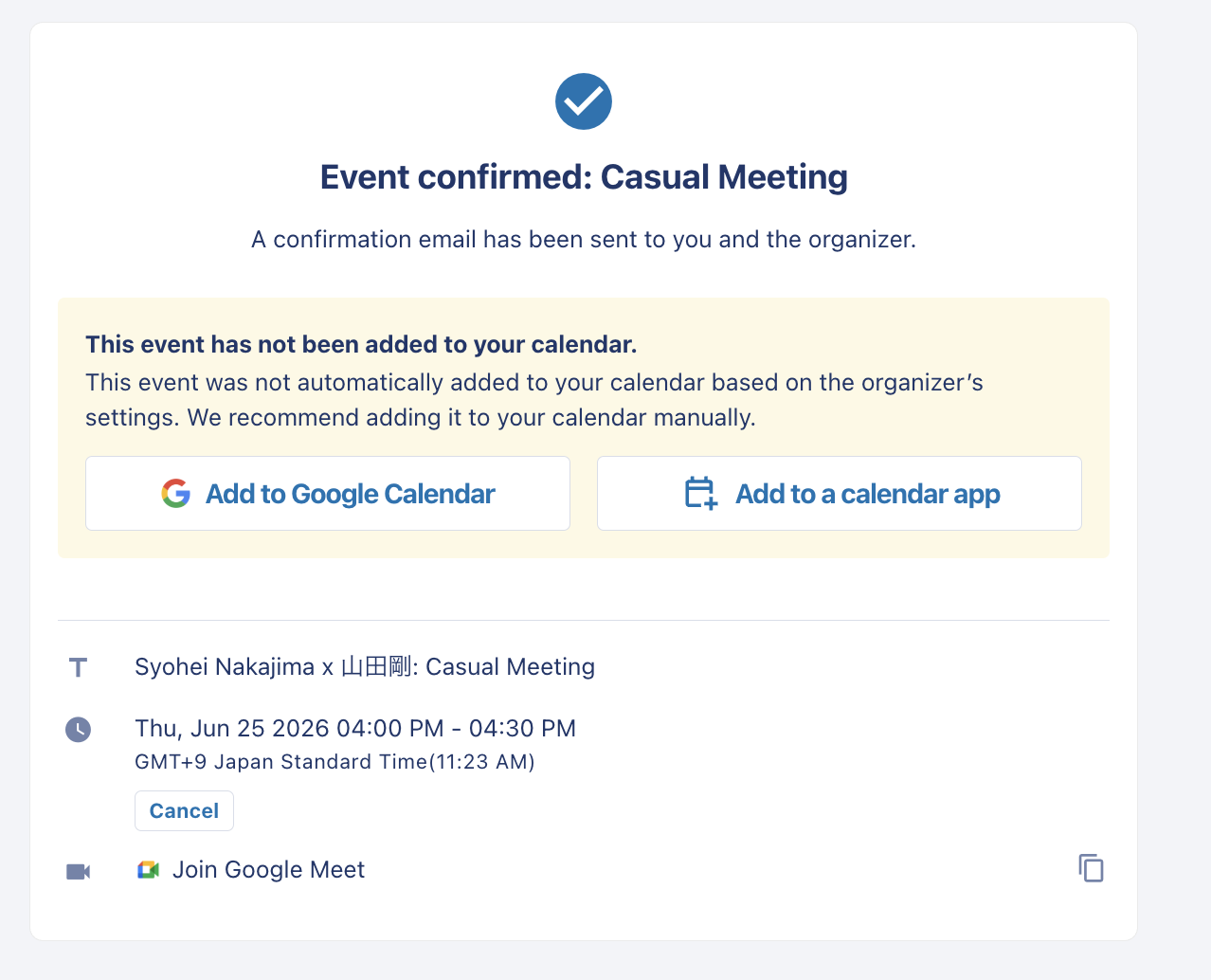
When "Create a shared event in calendar apps" Is Disabled
The configured email address is not displayed on:
- The completion page shown after scheduling is confirmed
- The scheduling confirmation email
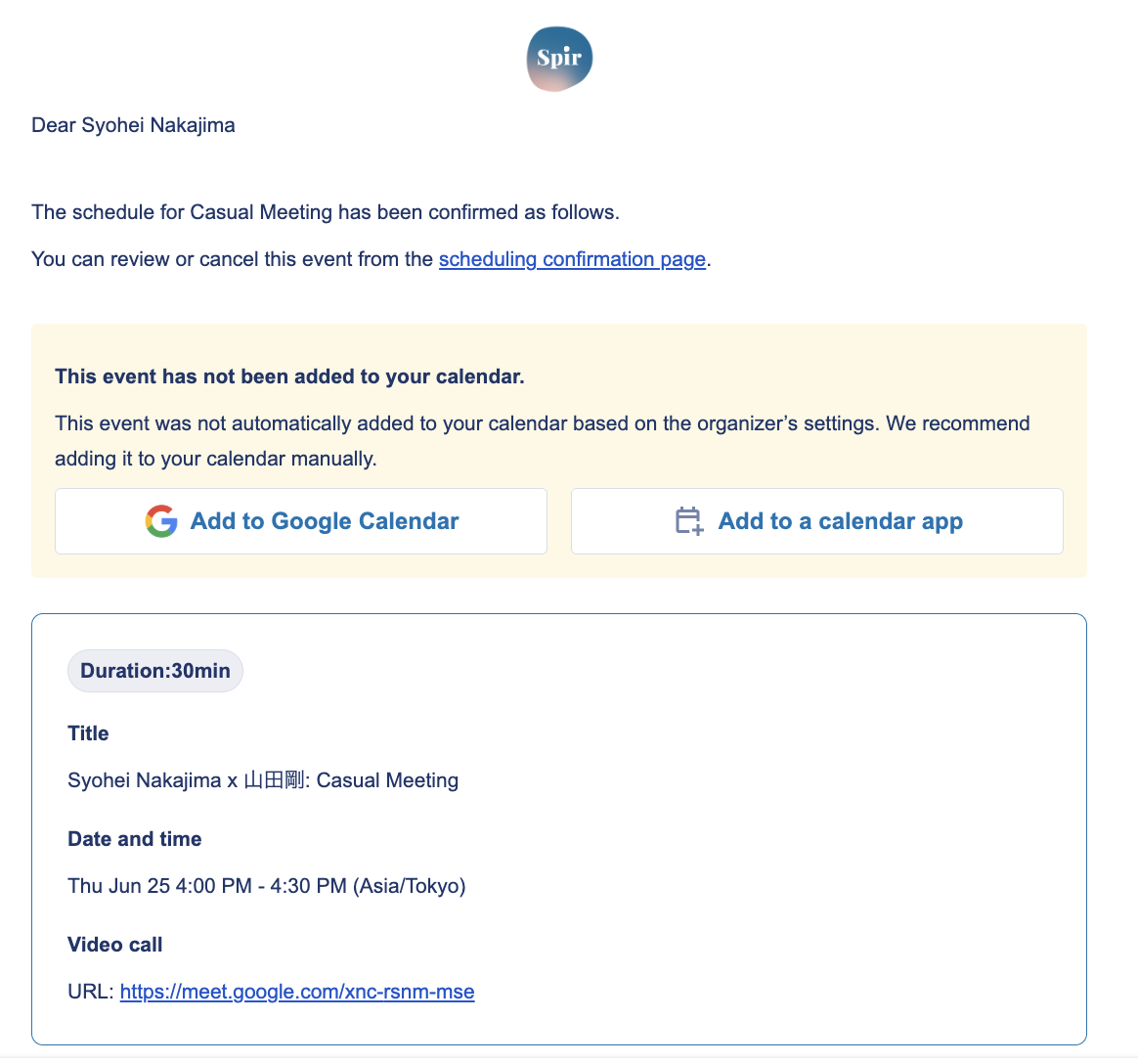
In this case, the event is created with only the organizer (and any Invitees) and the email addresses configured under Send a calendar invitation as participants.
Use Cases
Recruiting
Register a recruiting team's email address to consolidate all interview schedules in one place and centrally manage the overall interview calendar.
Sales
Register the sales team's mailing list so that meeting schedules for all team members, including new employees, are automatically reflected. This allows the entire team or department to track who is meeting with whom and when.
If a member configured under Send a calendar invitation also uses Templates, events added through this feature are treated as busy and will no longer appear as available time slots.
If you would like those time slots to remain available, use one of the following methods:
- Decline the event manually.
- Change the event status to Free manually.
- Add the event title to the Template's exclusion keywords so that it is automatically ignored.
Occupational Health Consultations
Register the email address of a nurse or coordinator who manages scheduling but does not attend the consultation itself. This allows all confirmed consultation appointments to be tracked centrally.
Executive Assistants and Administrative Support
Register the email address of an assistant who does not attend meetings directly. This enables centralized visibility and management of confirmed schedules for the executives or managers they support.