![help_logo.png]](https://help.spirinc.com/hs-fs/hubfs/help_logo.png?height=34&name=help_logo.png)
This feature is not available on the Free plan.
To use this feature, please consider upgrading to a paid plan.
Overview
The event organizer setting in a team template has a choose a member option. With it, availability is still taken from the attendees’ calendar, but the event organizer is the member you chose. This is useful when you want to keep events and video call recordings in one specific account.
There are two options for event organizer:
- Choose from attendees automatically: The first attendee of each group becomes the organizer. (Default)
- Choose a member: The selected team member becomes the organizer. You can also choose a member who isn’t an attendee.
The selected member’s calendar isn’t used to check availability. Availability isn’t affected even if that member’s calendar is full.
If the event title includes {Your name}, the name of the member chosen with this feature will appear in the event title.
For example, if the selected member is named “meeting room admin,” that name will appear in the title.
If needed, edit the event title to remove {Your name}.
Customize event titles
Where confirmed events are added and who is notified
When an event set to choose a member is confirmed:
- Calendar event: The event is added to the selected member’s calendar.
- Video call link: The URL is issued from the selected member’s account.
- Event attendees: The selected member becomes the organizer, and the event attendees are the selected member plus all members of the assigned group.
So the selected member’s name and email address also appear in the attendee list of the calendar event and in notification emails. - Notification emails: These are sent as follows.
| When | Selected member (organizer) | Event attendees | Additional notification email addresses |
|---|---|---|---|
| Event confirmed | Sent | Sent individually to each attendee | Cc on the organizer’s email |
| Canceled by guest | Sent | Cc on the organizer’s email | Cc on the organizer’s email |
| Edited or deleted by a member on someone’s behalf | Sent | Not sent | Not sent |
| Delegate selected dates in a delegated template | Sent | Not sent | Not sent |
- What the guest sees: The organizer name shown to the guest is also the selected member.
Use cases
- Recruiting interviews: Make the recruiting team’s shared account the organizer so that all recordings are kept in one account, whoever the interviewer is.
- Choosing a video call app: A team that mainly uses Google Calendar can make an account connected to Microsoft Outlook the organizer. Microsoft Teams URLs are then issued when events are confirmed.
How to set it up
- Open the templates tab for the team you want to set up, then create a new template or click edit on an existing one.
- Click advanced settings, then open calendar event.
- Under event organizer, select choose a member.
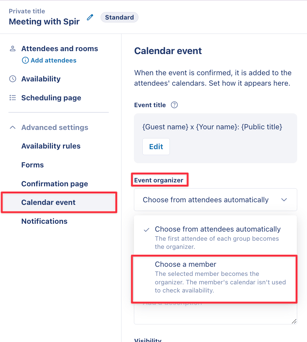
- From the dropdown that appears, select the member to make the organizer.
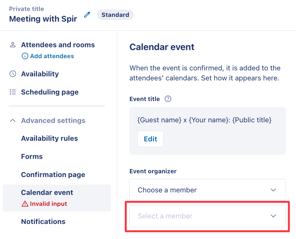
- Click save in the top right of the screen.
Note: To make a shared account the organizer, first invite the shared account as a team member, then connect its calendar and video call app.
Note: If the selected member’s calendar connection has expired, events can’t be created with that template. Please reconnect the calendar.
FAQ: Choosing an event organizer who isn’t an attendee
Can I make a member who isn’t an attendee the organizer?
Yes. But if you choose a member who isn’t an attendee, that member’s calendar aren’t used to find availability. Availability is taken from the attendees’ calendar.
Can events overlap on the selected member’s calendar?
Yes. Several events may be added to the selected member’s calendar at the same time.
Please keep this in mind if you collect many interviews or sales meetings in one shared account.
Which account are video call recordings saved to?
The video call URL is issued from the selected member’s account. Recordings from apps such as Google Meet are saved to the organizer’s account.
What happens if the selected member is removed from the team?
Event creations continue to work as they would with choose from attendees automatically. A warning will appear on the template’s edit screen, so please check the settings and save again.
How is this different from “invite other participants”?
Both add events to a specific calendar, but their role in the event is different.
-
- Event organizer (this feature): The selected team member becomes the event organizer. The video call URL is issued from the organizer’s account, and recordings are saved to that account. Confirmation and cancellation emails are also sent to the selected member.
- Invite other participants: The email addresses you add join the event as attendees, and the event is added to their calendars. The organizer and the account that issues the video call URL don’t change. You can also add mailing lists. To receive Spir’s confirmation emails, you also need to add the addresses under email addresses to notify.
To keep events and recordings in a shared account, use event organizer. To share events with other people’s calendars, use email addresses to invite to the event.
See also: Add emails for calendar invitations